

Someone finds your service page on Google, reads it and sends an enquiry through your contact page. The form was submitted on /contact. The service page is where the visit began. To see which pages bring in enquiries, verify the event that records a successful submission, then read it by Landing page for sessions from google / organic.
You can use that report alongside your inbox or CRM to decide where to spend time. A page that brings the right enquiries may deserve more visibility. A page with plenty of visits and few enquiries may need a clearer offer or an easier way to get in touch.
Choose the action you want to count
For a contact form, count a submission when the site or form provider confirms it has accepted the enquiry. The confirmation might be a success message, a thank-you page reached after the form sends, or an event from the form provider. Check that the lead also reaches the inbox or CRM where someone will respond.
GA4 can collect form_start and form_submit through enhanced measurement. These help you see how people use the form. Before using form_submit as your lead event, check when it fires on your site and whether it also counts other forms, such as newsletter sign-ups. At Encanta, we use contact_form_submit for the confirmed contact enquiry. Keep names, email addresses, phone numbers and message text out of the event and its parameters. Google’s form interaction events · Google’s guidance on personal information
Start with a form submission you can account for
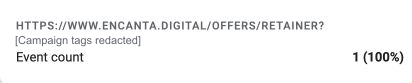
On Encanta’s site, we opened the Ongoing Marketing Support page in a new session with a labelled test campaign. We followed the enquiry link, sent one test message and checked that the form accepted it. GA4 Realtime recorded one contact_form_submit. It had the same session ID as the session_start event for /offers/retainer.
Run the same check on your site from a fresh browser session. Record the starting page, the time and the device so you can recognise the test in GA4.
- Open a service page and follow its enquiry link. Try leaving a required field blank and check that the lead event stays silent when the form blocks submission.
- Complete the form with a clearly labelled test message. Confirm that the site accepts it and that it arrives where your team handles leads.
- Find the success event in Realtime, or in DebugView if debug mode is enabled. Look for one event from the accepted submission and confirm that the session began on the service page. Use the same test on mobile if the form or enquiry route works differently there. Google’s DebugView guide
If one submission fires the chosen event twice, trace both triggers. For example, a tag can fire when the form reports success and again when the thank-you page loads. Check what happens on refresh if your setup uses a thank-you page.
Mark the verified event as a key event
In GA4, go to Admin → Data display → Events. Find the event you verified and mark it as a Key event. We used Once per event for Encanta’s form so that each confirmed submission is counted. If one person sends two accepted forms, that can produce two key events. Use the CRM to work out whether they were two enquiries or a duplicate. Google’s key event guide · Google’s counting methods
The change applies from the time you mark the event. Google advises allowing up to 24 hours for it to show in standard reports. Encanta’s test ran before we marked the event and used a separate campaign tag. It verified the form and landing page in the same session. The Google organic report will count subsequent submissions attributed to that source. Google’s key event guide
See which landing pages start Google organic enquiries
- Open Reports → Landing page. The report groups visits by the first page viewed in each session. Choose a date range that starts after you marked the event and gives the newest events time to process.
- Filter Session source / medium to
google / organic. If you can’t use that dimension as a filter, add it as a secondary dimension and read the rows with that value. You can also start in Traffic acquisition, choose Session source / medium and add Landing page + query string. Google’s Landing page guide - In Key events, select your form event. Read the count alongside Sessions so you know how much traffic each page had. A page with very few visits may need more time before you can judge its enquiry performance.
If a buyer finds you on Google on Monday and comes back through a newsletter on Thursday, the Thursday enquiry can appear under the newsletter session. The report tells you where the session that contained the enquiry started. Use that scope when explaining the numbers to someone who wants to know how the buyer first heard about you. Google’s Landing page guide
Diagnose gaps before changing a page
The inbox received the test, but GA4 shows no event. Confirm the report is for the correct property. Check whether the tag loaded in the test browser and whether your consent settings permit collection in that session. Then check the form’s success trigger. Embedded forms and forms that submit without loading a new page may need a success signal from the form provider. Google’s DebugView guide
Realtime showed the event, but the report is empty. Check the date you marked it as a key event, the event selected in the report and the date range. Read the unfiltered report first, then apply google / organic. A tagged test session will appear under its own source and medium once processed.
Search Console shows clicks, but GA4 shows fewer sessions. Search Console counts activity on Google Search. GA4 counts sessions it records on your site. Use Search Console to see which pages and queries earned visibility, and GA4 to see what recorded visits did. Compare trends at page level and avoid assigning a specific search query to an individual enquiry. Google’s Search Console Performance report
Check what happened to the enquiry
Imagine two service pages in the same four-week reporting window. These figures are illustrative.
| Landing page | Sessions | Form events |
|---|---|---|
| Office cleaning | 120 | 1 |
| Commercial window cleaning | 60 | 3 |
Office cleaning had more visits and fewer accepted forms. Check the searches that brought people in. If those searches fit the service, try the mobile route and see whether the page answers questions about the areas covered and the work the company takes on. For commercial window cleaning, three forms is enough to read the enquiries and see whether they were the right sort of work. It’s a small sample for judging which page converts better.
Keep a short weekly review. Read Google organic sessions and confirmed form events by landing page in GA4. In the inbox or CRM, review enquiries received, qualified enquiries and quotes or bookings. If your CRM reliably records the source and landing page, compare those outcomes by page. Otherwise, use them to assess lead quality across the period. If a page starts plenty of enquiries and few are a fit, read the messages before changing the form. Buyers may be taking the page’s promise exactly as written.
To check the response side, the free enquiry response test on Encanta Studio helps you send a test enquiry yourself and keep a dated record of the reply.
If your form counts and received enquiries are hard to reconcile, see Encanta’s analytics and measurement work.